Top companies trust Zapier to automate work that solves their unique business problems—no coding required.
How Zapier works
Zapier makes it easy to integrate Google Sheets with ProjectManager - no code necessary. See how you can get setup in minutes.
100%
Help
Google Sheets
Google Sheets
1. Choose trigger event
ProjectManager
ProjectManager
2. Choose action
1. Select the event
Setup
Test
Google Sheets
Choose a trigger event
Choose a trigger
A trigger is the event that starts your Zap—like a "New Spreadsheet Row (Team Drive)" from Google Sheets.
Add your action
An action happens after the trigger—such as "Create Project" in ProjectManager.
You’re connected!
Zapier seamlessly connects Google Sheets and ProjectManager, automating your workflow.
Supported triggers and actions
Zapier helps you create workflows that connect your apps to automate repetitive tasks. A trigger is an event that starts a workflow, and an action is an event a Zap performs.
Create a new record or update an existing record in your app.
User
Required
Task ID
Required
Date
Required
Hours
Required
Notes
Action
This is an event a Zap performs.
Write
Create a new record or update an existing record in your app.
Project ID
Required
Action
This is an event a Zap performs.
Write
Create a new record or update an existing record in your app.
Get Project Priorities
Gets a list of all the priorities which can be applied to a project
Action
This is an event a Zap performs.
Write
Create a new record or update an existing record in your app.
Project
Required
Action
This is an event a Zap performs.
Write
Create a new record or update an existing record in your app.
Task ID
Required
Action
This is an event a Zap performs.
Write
Create a new record or update an existing record in your app.
Project
Required
Action
This is an event a Zap performs.
Write
Create a new record or update an existing record in your app.
Get User Roles
Get all the roles which can be assigned to a user
Action
This is an event a Zap performs.
Write
Create a new record or update an existing record in your app.
Get User Teams
Get all the teams which a user can be added to
Action
This is an event a Zap performs.
Write
Create a new record or update an existing record in your app.
Task ID
Required
Field ID
Required
Value
Required
Action
This is an event a Zap performs.
Write
Create a new record or update an existing record in your app.
Task ID
Required
Name
Description
Due Date
Progress
Priority
Status ID
Action
This is an event a Zap performs.
Write
Create a new record or update an existing record in your app.
User to Update
Required
First Name
Last Name
Phone Number
Notes
Teams
Skills
Action
This is an event a Zap performs.
Write
Create a new record or update an existing record in your app.
First Name
Last Name
Email
Assignable Users Only
Team
Skill
Role
Action
This is an event a Zap performs.
Search
Find existing data in your app
Date From
Date To
Project
Task
User
Order By
Action
This is an event a Zap performs.
Search
Find existing data in your app
First Name
Required
Last Name
Required
Email
Required
Assignable Users Only
Team
Skill
Role
Phone
Notes
Teams
Skills
Action
This is an event a Zap performs.
Search or write
Find existing data in your app, or create a new record if no data is found
Date From
Date To
Project
Task ID
Required
User
Required
Order By
Date
Required
Hours
Required
Notes
Action
This is an event a Zap performs.
Search or write
Find existing data in your app, or create a new record if no data is found
For AI agents & developers
Use Google Sheets and ProjectManager with AI agents and code
Beyond Zap workflows. Call Google Sheets and ProjectManager actions directly from your AI client or your codebase, using the same 9,000+ app integrations Zapier already runs.
No code
Connect via Zapier MCP
Expose Google Sheets and ProjectManager actions as tools in any MCP client. Authenticate once, then call them in natural language.
Example actions on this page
Create Spreadsheet Column
Create Project
Works with
Claude · ChatGPT · Cursor · any MCP-compatible client
There is no Python package yet. SDK is TypeScript-only (@zapier/zapier-sdk). The MCP server URL is personal to your account; get it at zapier.com/mcp.
Zapier is the automation platform of choice for 87% of Forbes Cloud 100 companies in 2023
93%
Customers who say using Zapier has made them better at their job
25m
Customers have created over 25 million Zaps on the platform
6 mins
The average user takes less than 6 minutes to set up a Zap
Connect Google Sheets and ProjectManager to integrate crucial parts of your business
With Zapier, you can integrate everything from basic data entry to end-to-end processes. Here are some of the business-critical workflows that people automate with Zapier.
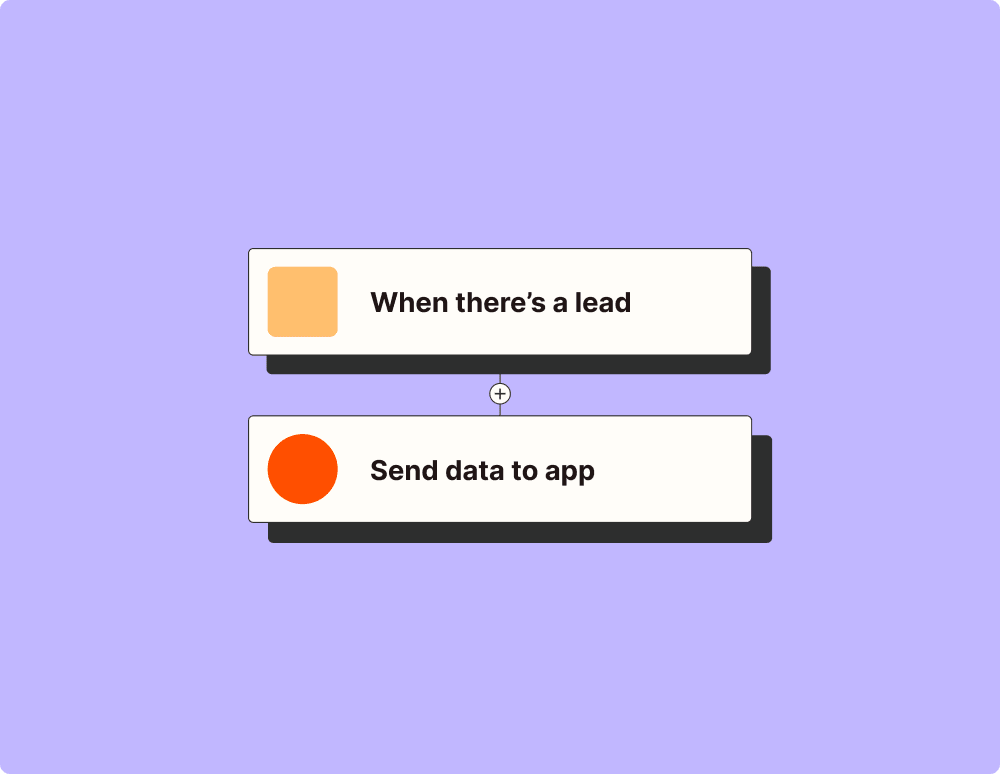
Automate your lead management and improve conversions
With Zapier, you can automate every part of your lead funnel and give yourself the best chance at converting leads. Automate everything from lead capture to outreach to reporting—and close more deals as a result.
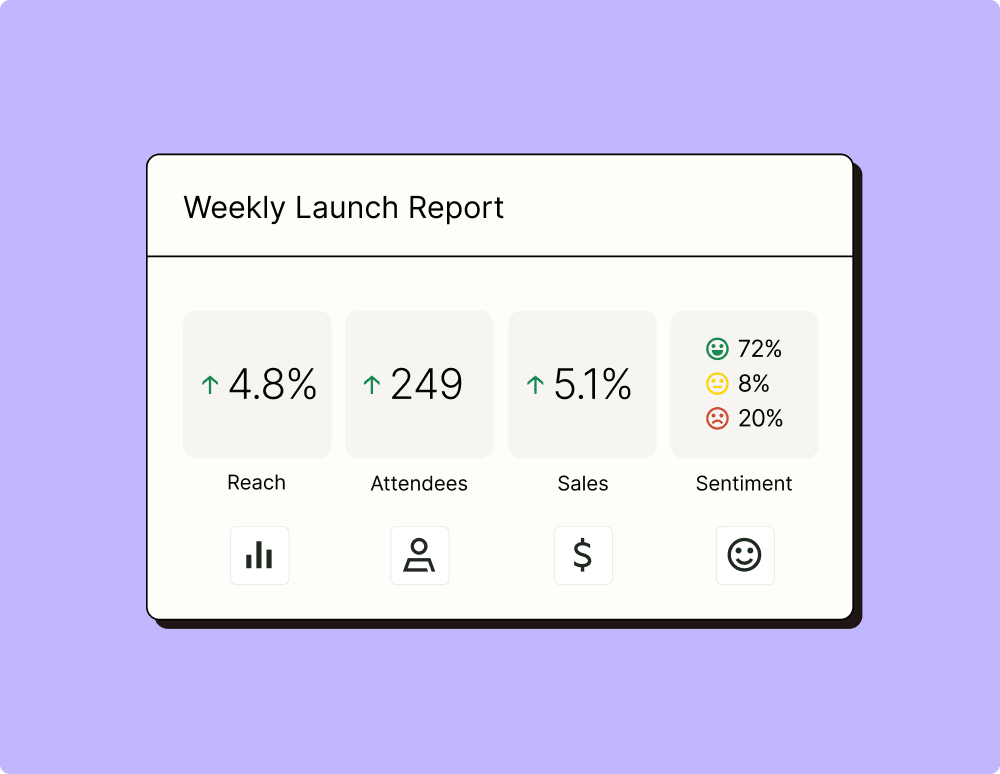
Create more impactful campaigns with automation
Measuring campaign performance across platforms can get chaotic. Plus, digging up the right metrics costs you precious time and effort. With Zapier, you can create a centralized view of your performance, skillfully manage your lists, and ensure your campaigns drive ROI across the business.
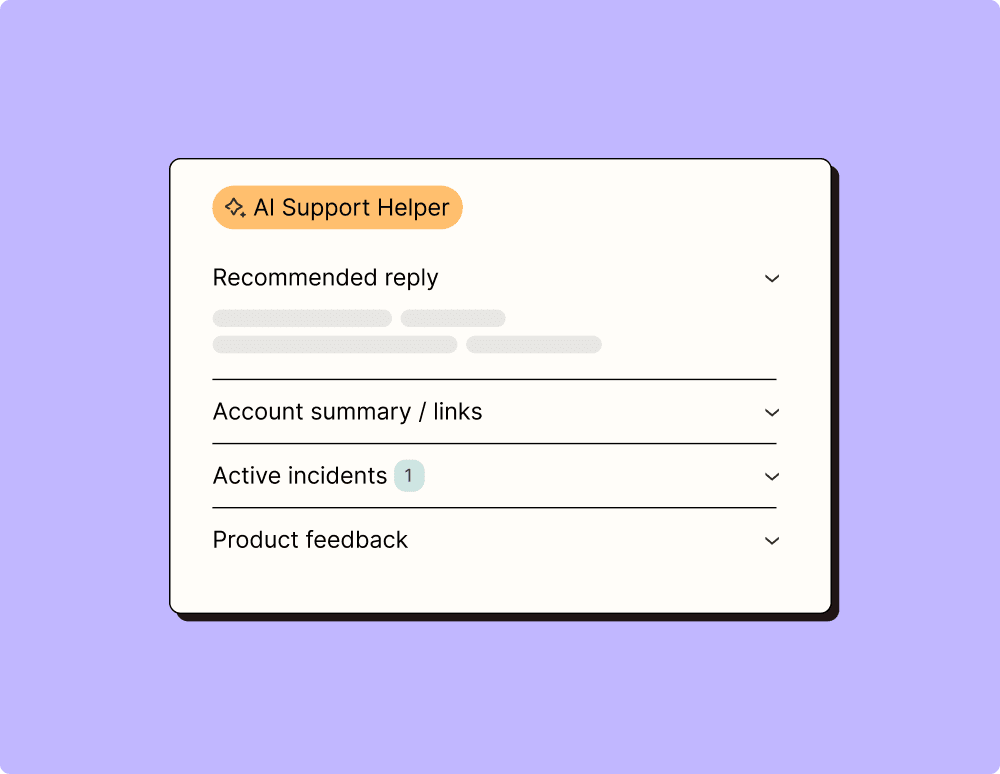
Provide world-class support with a little help from automation
Support reps can't be productive when they have to track down crucial information for every incident or ticket. With Zapier, you can automatically send your reps the context they need to resolve tickets quickly and create a seamless customer experience.
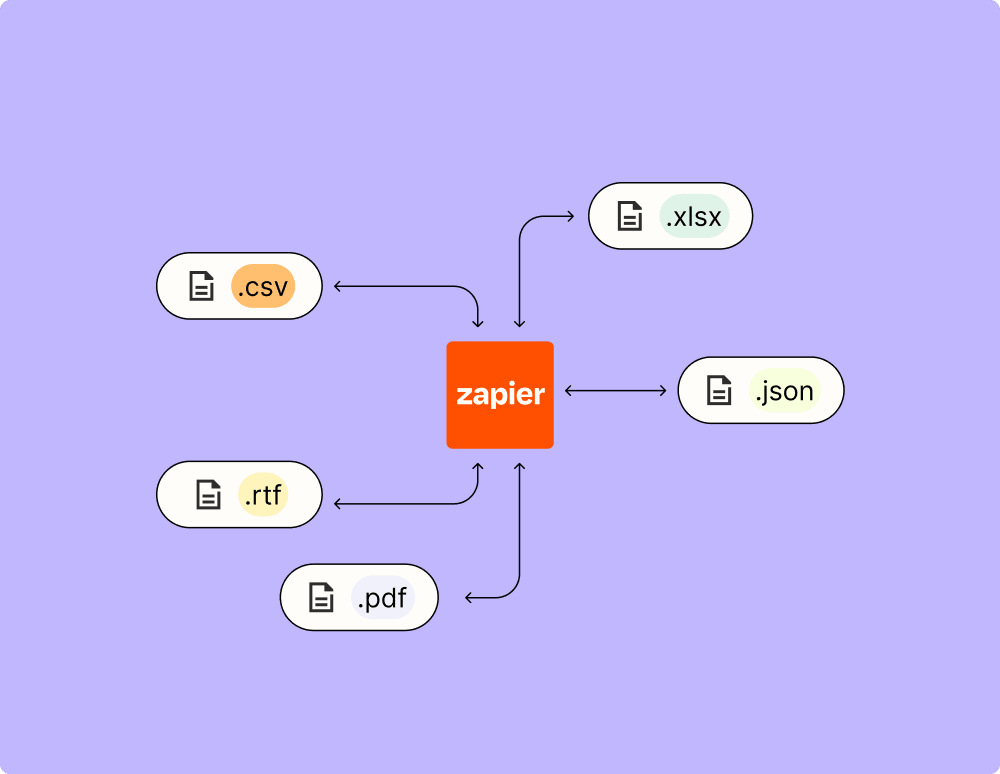
Automate your way to actionable, up-to-date data
The days of manually exporting and importing data are over. With Zapier, you can send data where it needs to go, in the format you need it—so you can centralize your data and unlock more insights.
Resolve incidents faster with automation
Your technical support team wants to focus on tech tickets rather than admin work. With Zapier, you can automate everything from ticket creation to routing to inter-team communication—eliminating friction from incident management and increasing speed to resolution.
Learn how to automate Google Sheets on the Zapier blog
Make work flow with AI
Level up your Google Sheets to ProjectManager integration with AI. Extract, summarize, and transform your integration data with leading AI models like OpenAI, Anthropic, and more.
Frequently Asked Questions about Google Sheets + ProjectManager integrations
New to automation with Zapier? You're not alone. Here are some answers to common questions about how Zapier works with Google Sheets and ProjectManager
How do I set up an integration between Google Sheets and ProjectManager?
To set up the integration, you'll first need to create a new Zap. Select Google Sheets as your trigger app and choose a specific trigger event like 'New Spreadsheet Row'. Then choose ProjectManager as your action app and specify an action such as 'Create Task'. Connect both accounts when prompted, and complete the mapping of fields between Google Sheets and ProjectManager.
What kind of data can be transferred from Google Sheets to ProjectManager?
You can transfer various data types including text, numbers, dates, and predefined lists. Commonly transferred data includes task names, descriptions, deadlines, assigned team members, and custom fields available in your ProjectManager projects.
Can I update tasks in ProjectManager using data from Google Sheets?
Yes, you can update existing tasks in ProjectManager with data from Google Sheets by setting a trigger on changes in the spreadsheet such as 'Updated Spreadsheet Row'. Ensure that there is a corresponding unique identifier like task ID for accurate updates.
What is a trigger in the context of integrating these two services?
A trigger is an event within Google Sheets that initiates the workflow automation between the two apps. For instance, adding a new row or updating an existing row in a sheet can serve as triggers to perform actions in ProjectManager.
Are there automatic updates between Google Sheets and ProjectManager once integrated?
Yes, any time a specified trigger event occurs in Google Sheets (such as adding or updating rows), the corresponding action will automatically run in ProjectManager to ensure real-time updates.
Is it possible to create multiple tasks at once in ProjectManager using rows from Google Sheets?
Multiple tasks can be created simultaneously if you configure your integration properly. By setting each row addition as a separate trigger event, each entry will result in a distinct task created within ProjectManager.
How do error handling and notifications work with this integration?
If there's an error during the automation process—like mismatched fields or invalid data—you'll receive notifications detailing what went wrong. These alerts help you take corrective action promptly to ensure continuous workflow execution.
About Google Sheets
Create, edit, and share spreadsheets wherever you are with Google Sheets, and get automated insights from your data.
ProjectManager.com is a simple yet powerful online project management tool that enables you and your team to plan, track, monitor and report on your projects in real-time.